
Product Registration
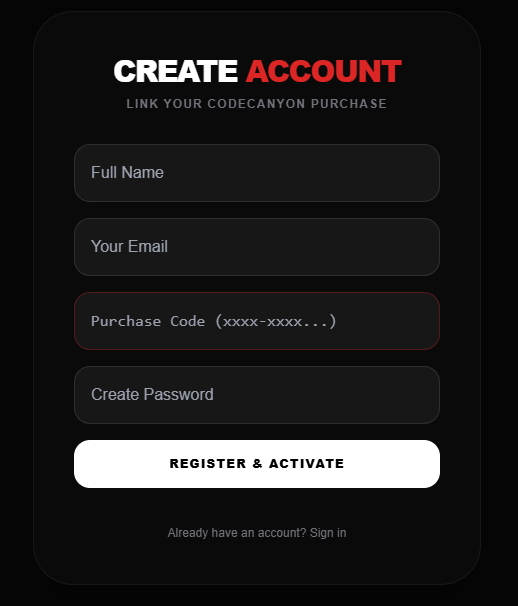
After your purchase, the first step is to activate your license in our central system.
NOTE: Registration is impossible without a valid CodeCanyon Purchase Code.
Domain Validation
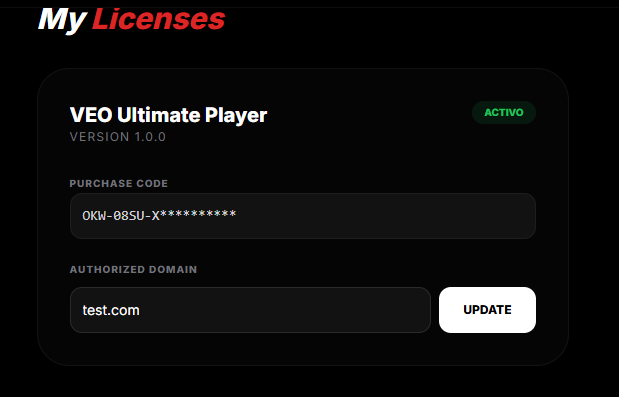
Once logged in, you must link your license to your website domain.
Database Creation
Before running the installer, you need to create a MySQL database in your hosting panel (cPanel, Plesk, etc.).
Database NameDatabase UserDatabase Password
Step 1 Create a new database (e.g., veo_db).
Step 2 Create a new database user and a strong password.
Step 3 Critical: Add the user to the database and grant ALL PRIVILEGES.
localhost as the Database Host. If you are using a remote server, please contact your provider.
Installation Wizard
First, upload the script files to your server root and extract them. Then, visit your domain (the one you registered in Step 2) to begin the installation.
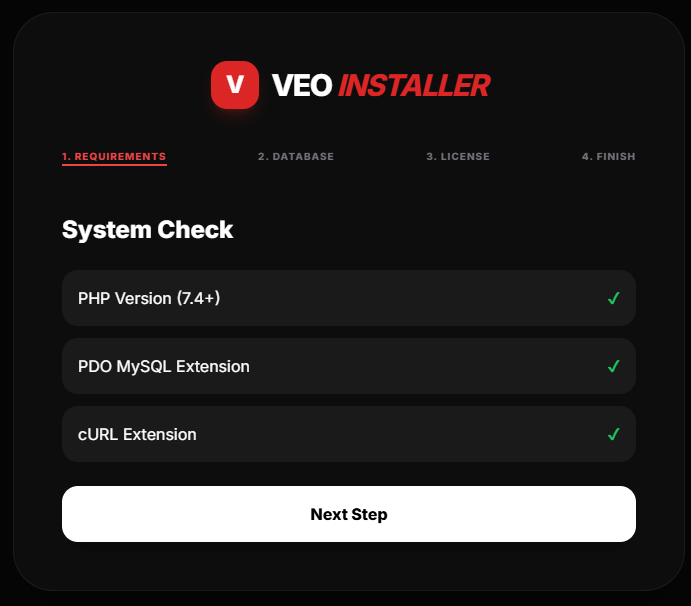
Step 1: Requirements
The system will automatically check if your server meets all requirements. If everything is green, click on NEXT STEP.
Step 2: Database Setup
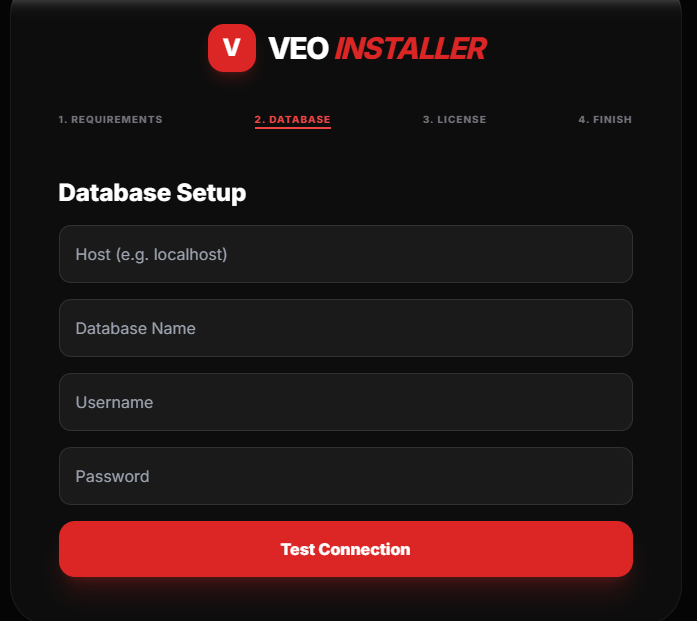
Enter your database credentials (Host, Name, Username, and Password). You can use the Test Connection button to verify the data before proceeding.
Step 3: License Activation
Enter your CodeCanyon Purchase Code in the activation field and click on VERIFY & FINISH. Remember this must match the domain you validated at setup.okwey.com.
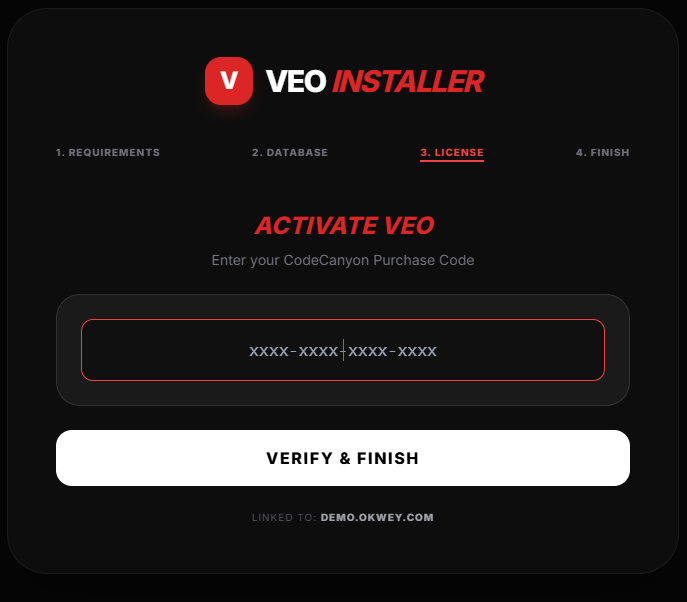
Step 4: Finish & Success
The platform has been activated successfully! Click on Launch App to start.
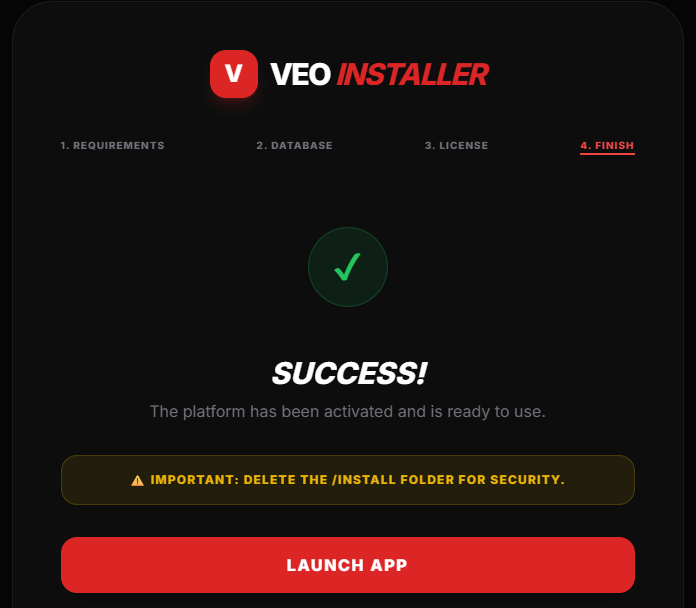
/install folder from your server immediately.
Platform Overview
Congratulations! Your platform is fully operational. Here is how the user flow looks:
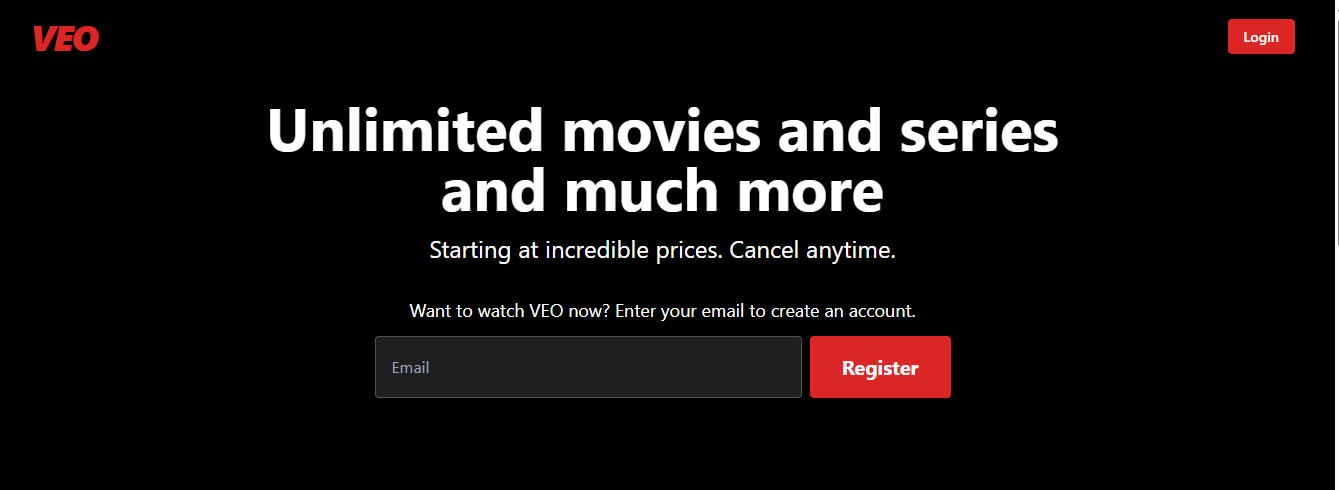
1. Public Landing Page
This is what your visitors will see. A high-end Netflix-style landing page. Click on the Login button at the top right to enter.
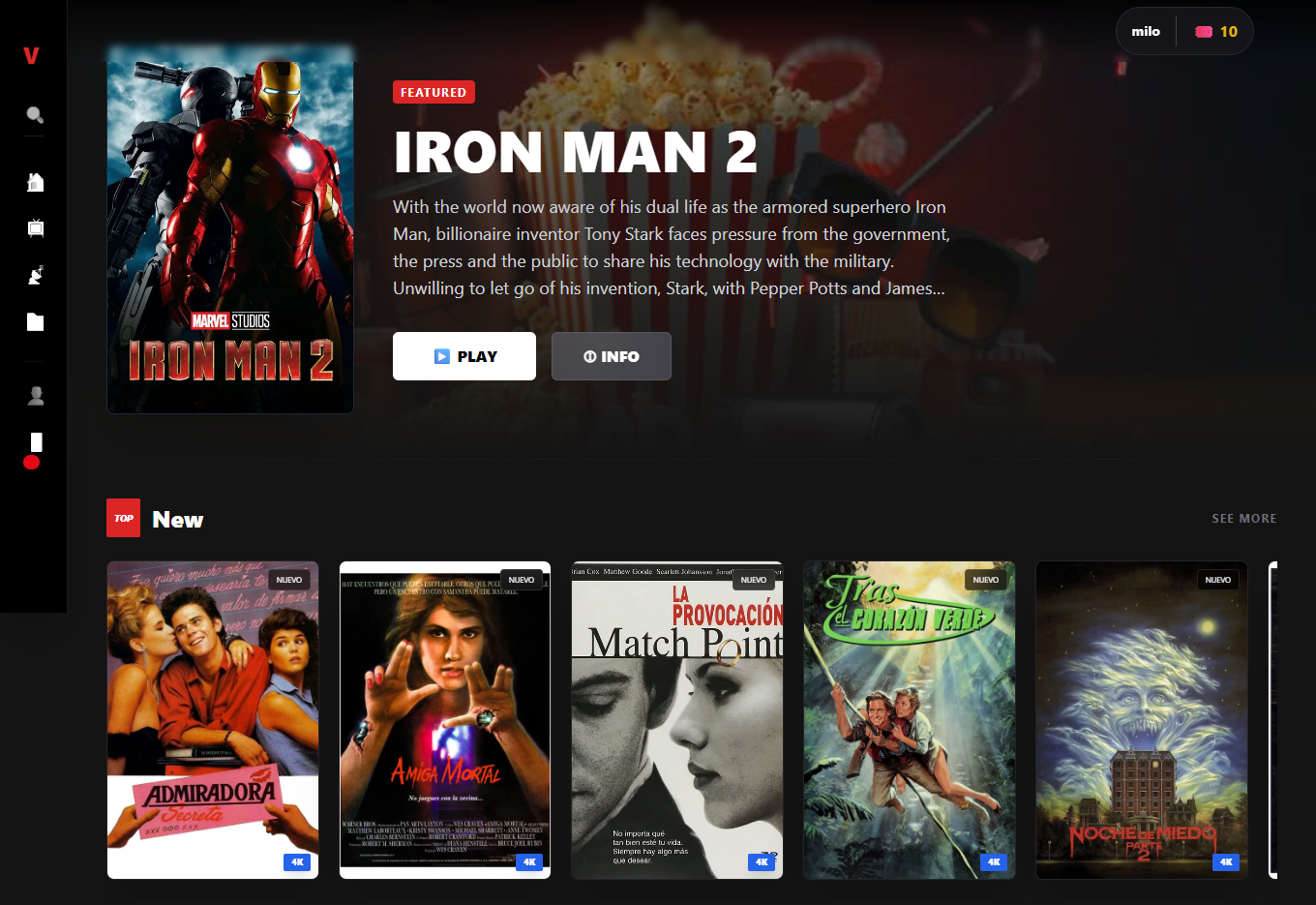
2. User Dashboard (Movies & Series)
After logging in, users will access the main dashboard where they can browse all the content, live TV, and categories.
Admin Panel Access
To manage your content, users, and settings, you need to access the administration area.
yourdomain.com/admin
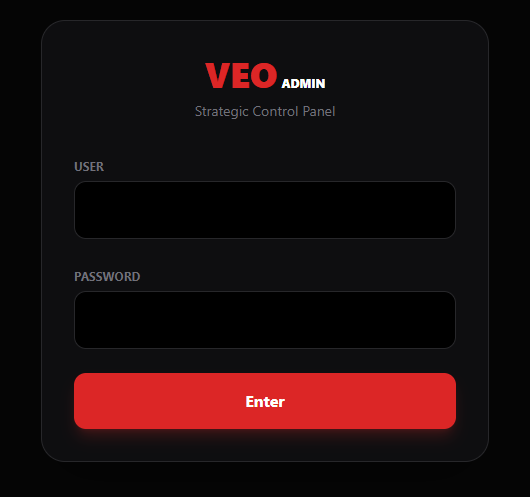
Default Credentials:
User: admin
Password: admin123
1. Admin Login
Enter the credentials mentioned above to securely access the management panel.
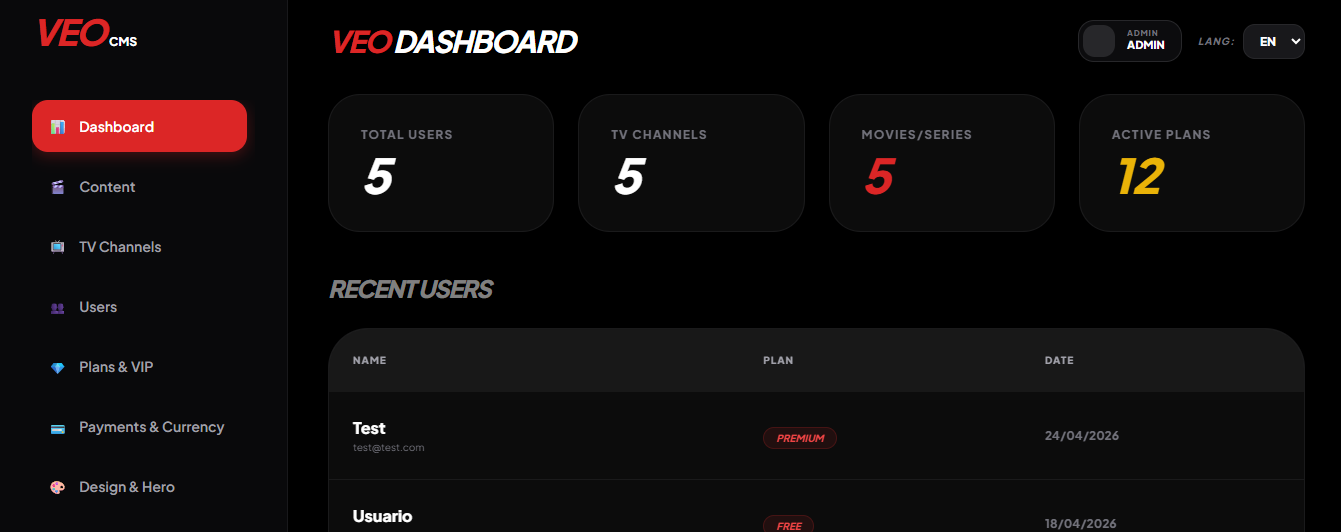
2. Admin Dashboard
Once inside, you will see the general statistics, total movies, series, and active users.
TMDB API Configuration
VEO Premium uses The Movie Database (TMDB) API to automatically import posters, backdrops, trailers, and descriptions for movies and series.
Example: Where to find your API Key
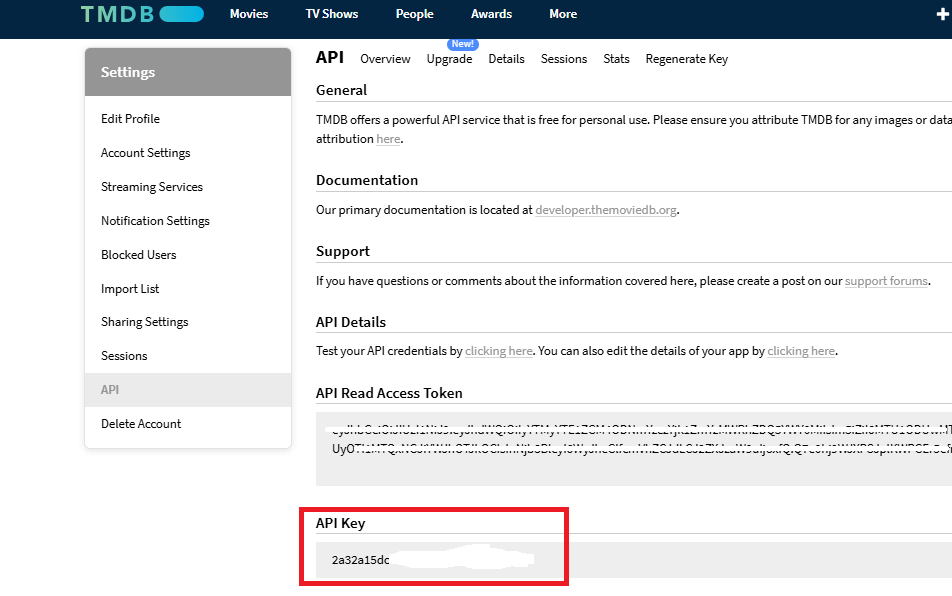
API Key (v3 auth), copy it and go to your **VEO Admin Panel** -> **Global Configuration** -> **TMDB API Key** and paste it there.
Payment Gateways
Configure your payment methods to start receiving subscriptions. You will need to get the API credentials from each platform.
1. PayPal Configuration
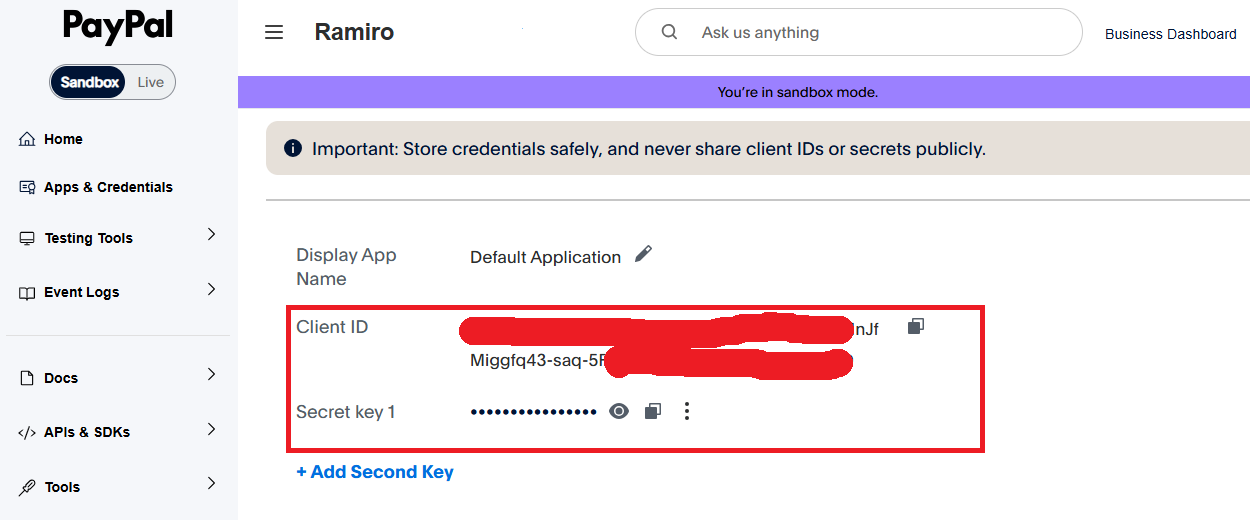
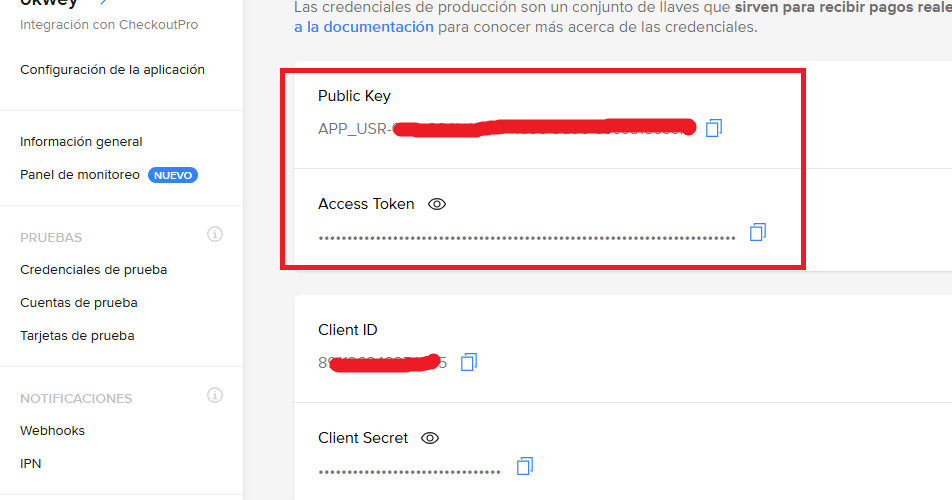
2. Mercado Pago Configuration
Go to Production Credentials in the left menu.
Email Configuration (PHPMailer)
To enable email notifications, password recovery, and invoices, you must integrate the PHPMailer library and configure your SMTP settings.
1. Install PHPMailer Library
1. Download the PHPMailer library from the official repository or the link provided in your purchase pack.
2. Upload and extract the PHPMailer folder into the root directory of your project.
2. SMTP Settings
Go to Admin Panel -> Settings -> SMTP Settings and fill in your email server details as shown in the image below:
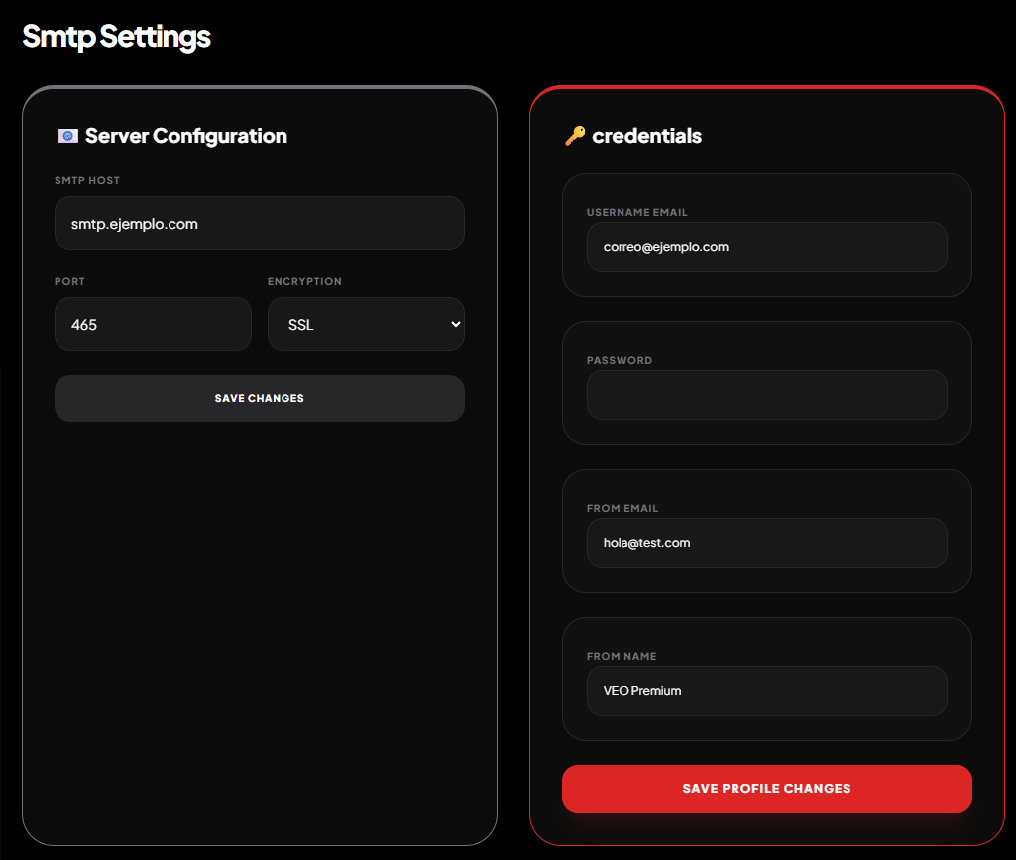
- SMTP Host: Your mail server (e.g.,
smtp.gmail.comormail.yourdomain.com). - Port: Usually
465for SSL or587for TLS. - Encryption: Select
SSLorTLSbased on your server. - Username: Your full email address.
- Password: Your email account password.
- From Email/Name: The identity the users will see in their inbox.
- ✓ Save Profile Changes: Click the button at the bottom to apply the SMTP settings.
Support & Community
Thank you for choosing VEO Premium! We are committed to helping you build the best streaming platform.
Need Help?
If you encounter any issues during installation or have technical questions, you can reach us through the following channels:
- Support Tickets: Visit setup.okwey.com to open a technical support ticket.
- CodeCanyon Support: Visit our profile and use the "Support" tab.
- Email: okweyoficial@gmail.com
- Documentation Updates: Check the
updates.txtfile in your download pack.